


 |
Asset Summary Overview
The Asset Summary tab is only visible to customers using the TTU-720 device. The Asset Summary displays a list of your assets, their current location and the amount of time that they are at the current locations.
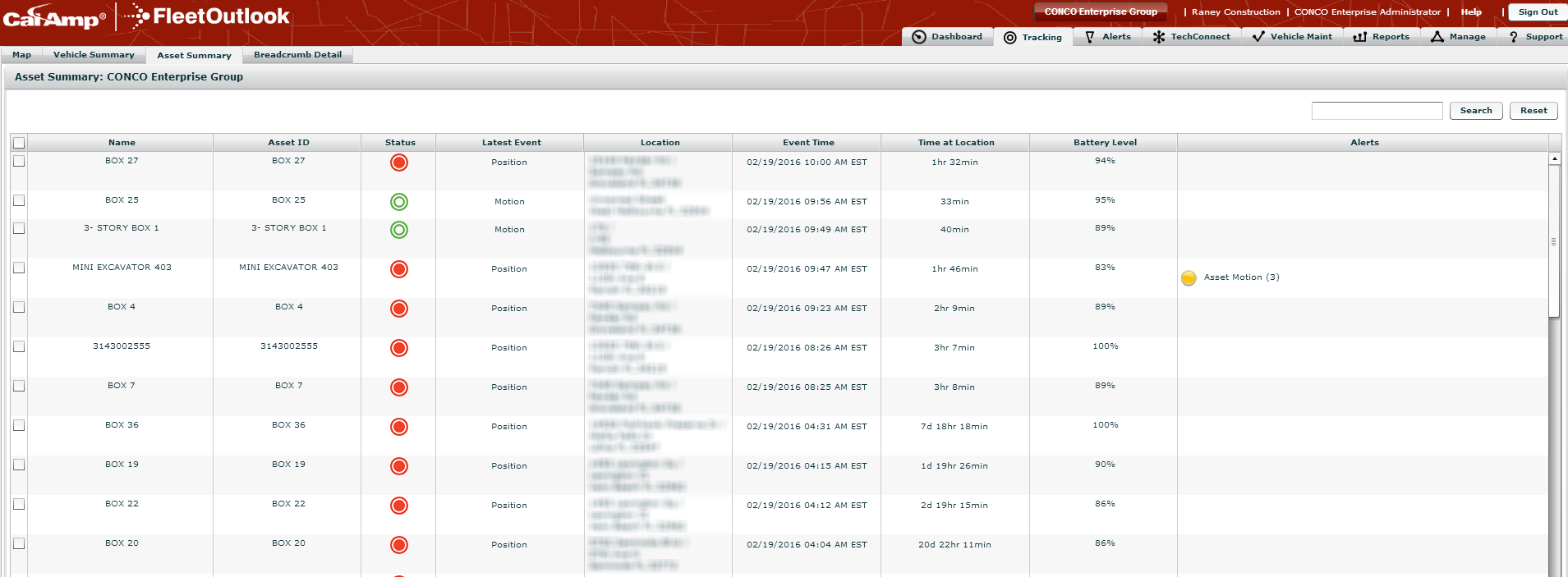
• Double-clicking on any asset opens the asset’s events for review in the Breadcrumb Detail tab.
• A small, black triangle indicates by which column the asset summary list is sorted and in what order. Left-click on a column heading once and FleetOutlook sorts the list in ascending order. Double-click on a column heading and FleetOutlook sorts the list in descending order. Left-click on a sorted column heading and FleetOutlook reverses the current sort order.
• Click and drag column headings to arrange the order of columns.
• Select an asset’s check box, and then click the Show Map button to show the selected asset on a map. You can select one or more assets to show on the map.
• Click the Find Nearest button to search for the nearest vehicle or asset.