


 |
Find Nearest
Select the Find Nearest button at the bottom to initialize a nearby vehicle or asset search. The screen displays a list of vehicles, showing the closest vehicle first to a user-defined location. Use this feature to find the nearest available vehicle or asset to a job location or a vehicle in need of assistance. The Latest Event and Event Age columns help identify which vehicles are available to dispatch.
To Search for Nearest Vehicle/Asset:
1. From the Vehicle Summary tab, click the Find Nearest button.
• The Find Nearest screen displays.
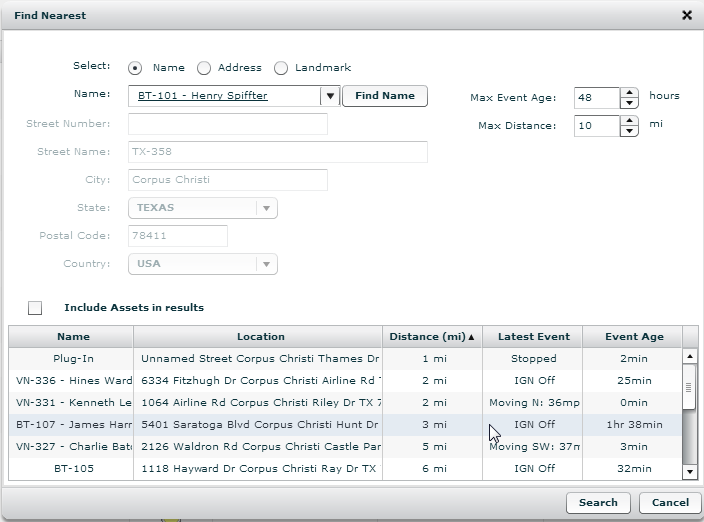
2. Select a search from option (e.g., Name, Address or Landmark).
• You can search by vehicle name, address or landmark. If you select address, you manually populate the address fields.
3. If you are searching by vehicle name or landmark, select the Name from drop-down list.
• FleetOutlook populates the address fields based on the selected landmark’s anchor point or the vehicle’s last reported location.
• Filter the search results by modifying the maximum event age or maximum distance from selected source location.
4. If appropriate, select the Include Assets in results check box.
5. Click the Search button.
• FleetOutlook returns a list of vehicles within a close proximity to the vehicle, address or landmark by which you searched.