


 |
Alert Notification Filter
When you create an alert, you have the option to configure a combination of notification methods including by email, text message or from within the FleetOutlook application. All of these notifications include an option to filter the alert notification to trigger only on specific days and during set times. You cannot set a notification filter for the Reports Only notification option.
For example, as a fleet supervisor, you need to monitor drivers for excessive lunch breaks. You have set a Long Stop alert for any stop greater than 35 minutes; however, you do not want this alert to trigger all day because your drivers have jobs that do require stops longer than 35 minutes to complete. You can set each alert notification filter, Monday – Friday from 11 AM- 1 PM. You will only receive the alert notification if a vehicle stops for longer than 35 minutes during the specified days and time frames.
Note: Using alert notification filters may impact the data generated in the Alerts report. Alert notification filters may cause the results of the Alerts report to be filtered. The results of the Alerts report will be filtered when all enabled alert notification methods are configured with identical notification filters.
To Set a FleetOutlook Alert Notification Filter:
1. Log in to FleetOutlook Admin, and then select the Alerts tab.
2. Select the Inactive tab, and then click the Add button.
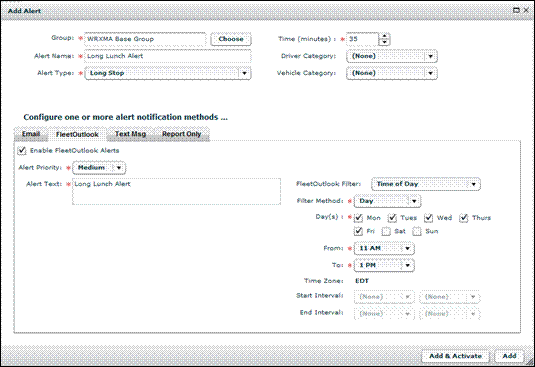
3. Configure the alert type and set the specific alert parameters as required for each alert.
• For step-by-step instructions on adding alerts, refer to Add an Alert.
• You cannot edit an active alert. To add a filter for an existing alert, select the Active tab. Select the alert from the list, and then click the Edit button. Click Yes to confirm that you want to deactivate the alert.
4. Select the tab for the preferred Alert Notification Method (e.g., FleetOutlook).
• You can select one or more alert notification methods.
5. Based on the notification method selected, configure the notification settings (e.g., adding an email address, alert text, etc.)
6. Select the Time of Day option from the Filter drop-down list.
• The Filter field includes the name of the notification method. For example, if you add a filter to an email notification method, the filter field is name Email Filter.
7. Select the Filter Method from the drop-down list (e.g., Day).
• Day – The Day option allows you to select specific days and time frame that you want to receive the alert notification. Selecting this option enables the Day(s), From and To fields.
• Date Range – The Date Range options allows you to set a continuous filter for a specified interval. Selecting this option enables the Start Interval and End Interval fields.
8. Check the appropriate Day(s) check boxes (e.g., Mon-Fri).
• Selecting a Day check box enables the alert notification on for that day.
9. Select a starting and ending time range from the From and To fields (11 AM, 1 PM).
• The alert notification will only trigger during the time range specified from the From and To fields.
10. Repeat Steps #6-9 for each alert notification method enabled.
11. Click the Save & Activate button.