
|
Manage Airtime Renewals Screen
The Manage Airtime Renewals screen enables you to manage the airtime renewal plans for devices in your main account and sub-accounts.
Airtime plans automatically renew on the 1st of each month for monthly billing. For weekly billing, airtime plans renew on the 1st, 11th, 18th, and 25th of each month.
You have until the end of the month to select which devices to renew or deactivate for the following month. Depending on your billing cycles, your invoice is processed either weekly or monthly.
To Manage Airtime Renewals:
1. Select My Accounts from the Menu bar, and then select Manage Auto Renewals on the Sidebar.
• The Manage Airtime Renewal screen displays. The list of devices is blank until you search for a single device or multiple devices.
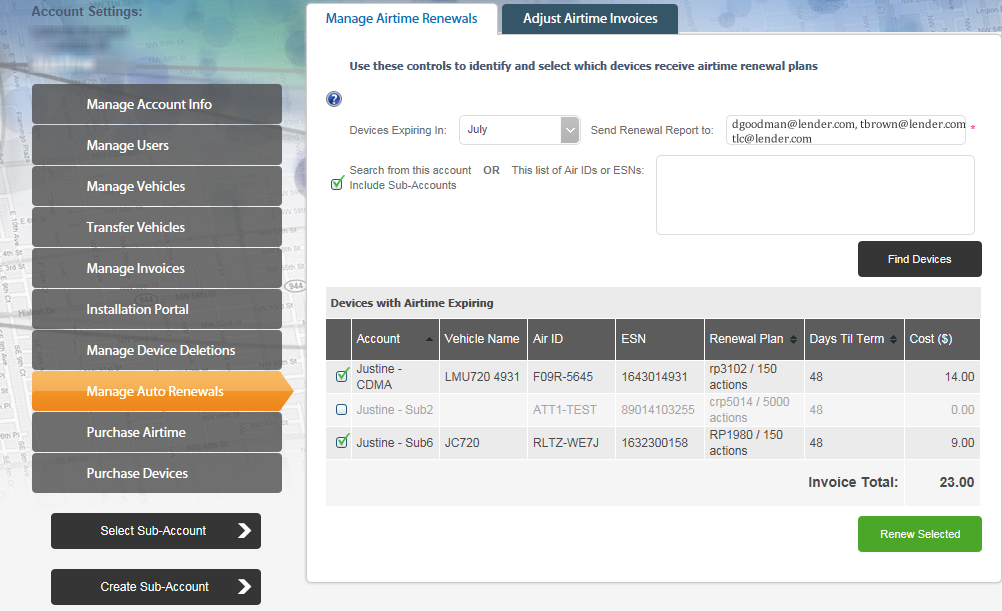
2. Select a month from the Devices Expiring In drop-down menu.
3. Select the Include Sub-Accounts check box to display devices in both your main and sub-accounts.
4. You can search for two devices in your account and sub-accounts using two methods:
• To limit your search, enter the Air ID or ESN for each device that you want to delete. Separate multiple devices with commas.
• To display all devices in your account(s), leave the Air ID/ESN text box empty then
5. Enter an email address in the Send Renewal Report field.
• This report provides a historical record of the devices that you recently renewed or selected for deactivation, including an audit trail of who performed the renewals or deactivations.
6. Click the Find Devices button.
• LenderOutlook lists your devices that expire selected month. Additionally, LenderOutlook displays the device renewal plan, days til term and the cost to renew.
7. Devices are marked to renew by default. Clear the check box for any device that you do not want to renew.
• If you do not renew a device, it will be deactivated when its current plan expires, which is listed in the Days Til Term column.
8. Click the Renew Selected button.
9. Click the OK button to confirm airtime renewals.
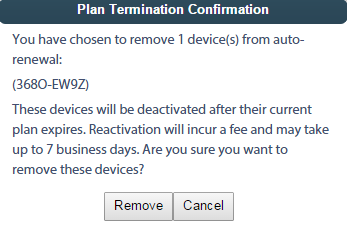
• Note: If you did not renew a device, LenderOutlook displays the Plan Termination Confirmation screen. Click the Remove button to remove the device from renewal.