



|
Using the Vehicle Tool Tip
The Vehicle Tool Tip displays when you point to, or hover over, a Vehicle icon on the map. This hover pane provides basic information such as vehicle name, the vehicle’s last reported event, last known location and a list of available commands that you can send to the installed device.
To Display a Vehicle Tool Tip:
1. Point to, or hover over, a Vehicle icon displayed on the map.
• The Vehicle Tool Tip displays.
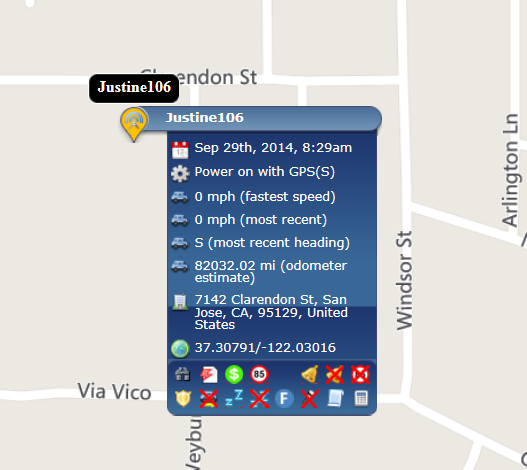
2. The Vehicle Tool Tip displays:
-
Vehicle’s last check-in
-
Last command sent to the vehicle’s installed device
-
Location parameters, such as speed and direction traveling
-
Last know location
-
Odometer (estimated), if available
-
Available commands
3. When you move your mouse away from the Vehicle icon, the Vehicle Tool Tip closes.
4. To send an available command, click the Command icon from the bottom of the Vehicle Tool Tip.
5. If the command costs an action, LenderOutlook prompts you for confirmation of action cost before sending the command to the vehicle’s installed device.