



|
Run a Report
The Reports tab displays the pre-defined LenderOutlook reports as well as any custom reports that you create. You may generate and view any report in the list by clicking the Run link; however, you can only edit and delete custom reports that you created.
To Run a Report:
1. Select the Reports tab.
2. Click the Run link for the report you want to generate.
• LenderOutlook renders the report data and displays the report data directly below the Report Name and Report Description fields.
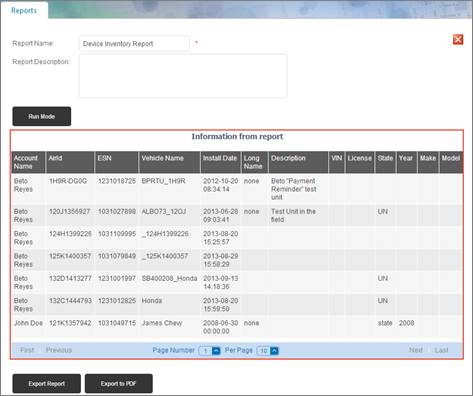
3. Click the Run Mode button to refresh the report data.
4. Click the Export Report button to export the report data to a CSV file.
5. Click the Export to PDF button to export the report to a PDF file.
• The PDF export option is the best selection to print report data.
6. Click the Close button in the upper-right corner to return to the Report list.