



|
Edit a Geozone
For each geozone, a drag-handle and delete icon display on the perimeter. Using the drag‑handle, you can increase or reduce the size of the geozone. Additionally, you can modify the size of the geozone by adjusting the value in the Radius field.
Note: At the bottom of the Manage Geozones screen, the Geozone Drawing Controls always display. This on-screen tips help you create and modify geozones.
To Edit a Geozone:
1. From the Geozones screen, click the Edit link for the corresponding geozone.
• The Manage Geozones screen displays for the selected geozone.
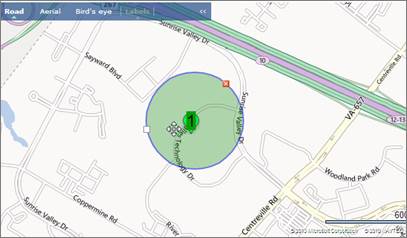
2. To move a geozone, right-click within the radius and drag to new location.
3. To resize a geozone, point to the drag-handle on the perimeter, and then left-click and drag to increase or decrease size.
4. To delete a geozone, click the Delete button on the perimeter.
5. Click the Save Update button when done modifying the shape and size.
6. Click the Yes button to confirm the action cost for sending a geozone update to a vehicle’s installed device.