



|
Add New Notification
Adding notifications enables you to monitor and manage your vehicles whether you are in the office or out in the field. Configure the settings to receive alerts by email or text message. The Add Configuration Screen provides an easy method to configure notifications for a single vehicle or multiple vehicles from a single screen.
Note: The trigger conditions are dependent on the device or devices included in the notification. If you do not see a condition, the selected vehicle may not have a device installed that supports alerting on the condition.
To Configure a Notification:
1. From the Notifications screen, select the tab for the type of notification you want to create: Group or Account.
• Create group notifications when you want to include only specific vehicles, and create account notifications when you want to include all vehicles in the selected account or sub-account.
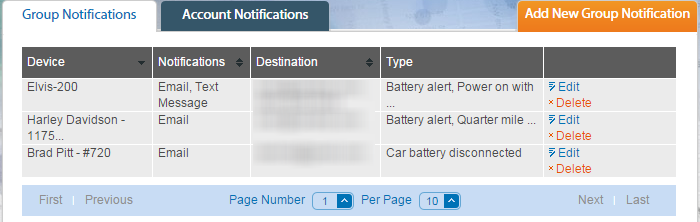
• The Add Notification screen displays.
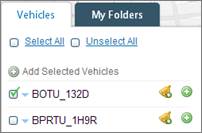
2. Add Vehicle(s) from the Vehicles List to the Notification:
• To add a single vehicle or one vehicle at a time, click the Add button next to each vehicle.
• To add multiple vehicles at once, select the check box for each vehicle and then click the Add Selected Vehicles button at the top of the Vehicles list.
3. Vehicles must have the same device type to be in the same Notification.
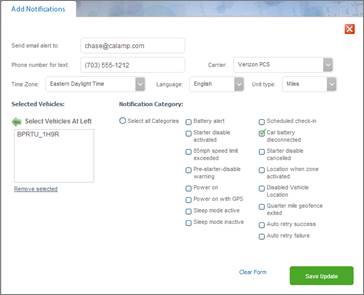
4. To receive notifications via Email, enter your email address.
5. To receive notifications via text message, enter your Phone number, and then select your mobile Carrier from the drop-down list.
6. Select Time Zone, Language and Unit Type options.
7. Select Notification Categories from the list of pre-defined conditions.
• The list of pre-defined conditions is device dependent.
• You can select one or many conditions from the list.
8. Click the Save Update button.
9. Click the OK button to confirm successful configuration.