



|
Bulk Commands
The Bulk Commands module enables you to send the same command to a large number of devices with just a few clicks of the mouse. You can copy a list of devices from a collections system, a dealer management system or an ERP system directly into LenderOutlook, and then send the same command to all the pasted devices at once. You can send the same command to up to 1,000 devices at a time.
Ways to Edit or Update Invalid Data >
How Bulk Command Works
LenderOutlook validates the list of pasted devices to confirm that each device is active within LenderOutlook, the device can execute the selected command, and no duplicate Air IDs or ESNs exist. If an error is detected, LenderOutlook displays an error message next to the device.
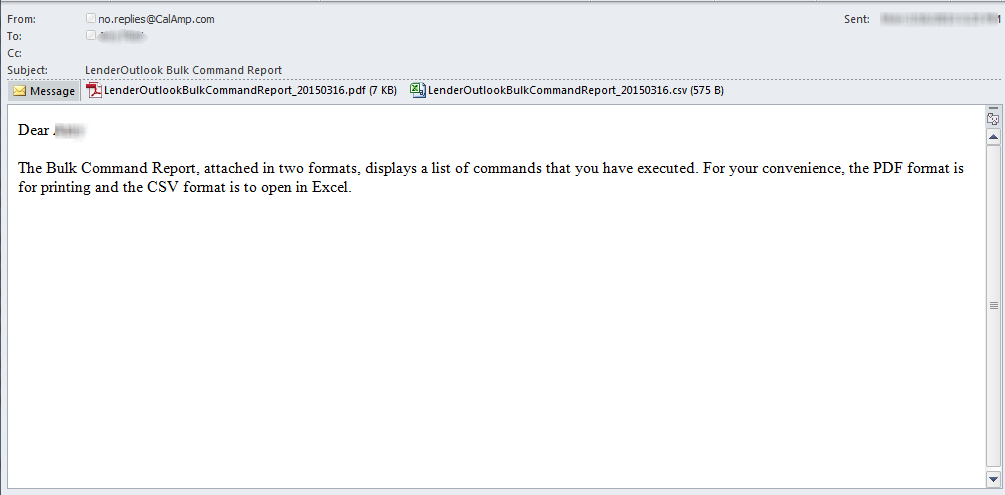
After you have successfully send the command, LenderOutlook sends the Bulk Command Report to the email address that you specified. This report provides a historical record of the commands sent and to which devices, including an audit trail of who sent the command.
Bulk Commands Supported
The Bulk Command feature supports the following commands:
-
Locate the vehicle – Sends the Locate Now command to the devices listed.
-
Disable the starter – Sends the Disable Starter command to the devices listed.
-
Enable the starter – Sends the Enable Starter command to the devices listed.
-
Payment Reminder:
-
If you use the Payment Reminder Scheduler: Enter the Next Payment Due Date for each device listed. Once the commands are sent, LenderOutlook marks all payments as paid up to the date that you supplied. Additionally, LenderOutlook turns off notifications, the payment reminder buzzer, or the starter disable based on the settings defined for each device on the Payment Reminder Scheduler screen.
-
If you do not use the Payment Reminder Scheduler: Sends either the Enable or Disable Buzzer commands to the devices listed. Commands include:
-
Buzzer On
-
Buzzer Off
-
Warning On
-
Warning Off
-
On
-
Off
Ways to Edit or Update Invalid Data
If your list contains errors, use any of the following methods to update the data:
-
You can edit the device identifier or command directly on the page.
-
You can right-click and re-paste data or remove the entire row.
-
You can click the Clear Bulk Data button, and re-paste your entire input list.
To Send Bulk Commands:
1. Select Bulk Commands from the Menu bar.
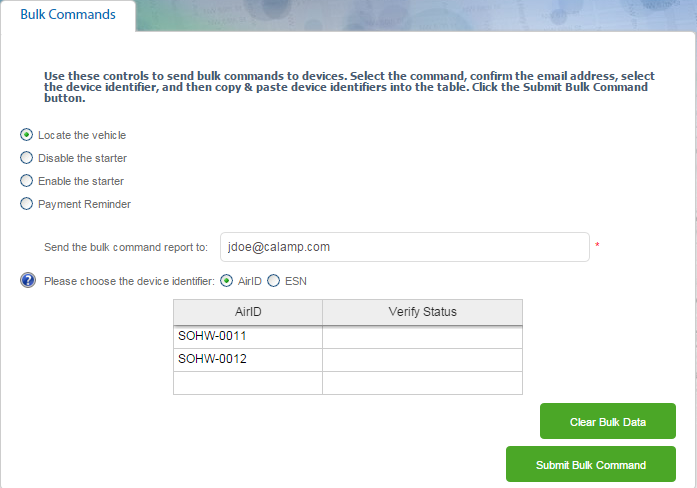
2. Select the Command that you want to send to a list of devices.
• If you select the Payment Reminder option, then you must select whether you use the Payment Reminder Scheduler or not.
3. Verify that the Email Address listed is correct. Separate multiple email addresses with commas.
• LenderOutlook sends the Bulk Command Report to the recipient(s) listed in the Email Address field.
4. Select the appropriate Device Identifier: AirID or ESN.
• Note: If you select ESN as the device identified, and then paste a list of AirIDs, LenderOutlook will return a "Not Found" error message.
5. Copy the list of device AirIDs or ESNs from your third-party management system, and then press Ctrl +V on your keyboard to paste into the table located at the bottom of the Bulk Commands screen.
6. Click the Send Bulk Command button.
• LenderOutlook displays a confirmation message with the cost of each action.
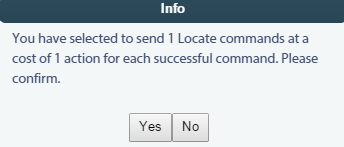
7. Click the Yes button to confirm.
8. LenderOutlook validates the data and displays the following message, if errors are found. If no errors are found, go to Step #12.
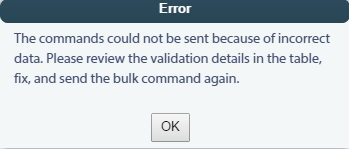
9. Click the OK button, and then review the Verify Status column for each device with an error.
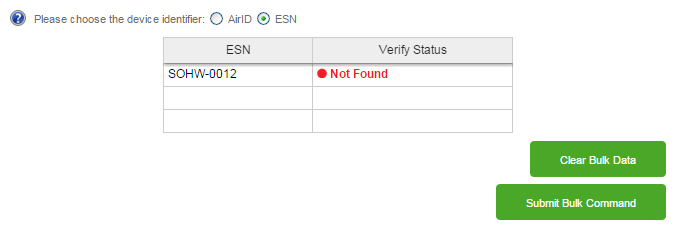
10. Fix the errors in your input list. This is the list that you copied from a third-party management system. Use any of the following methods to fix the data:
o Edit the device identifier or command directly on the page.
o Right-click and re-paste data or remove the entire row.
o Click the Clear Bulk Data button to remove all rows, and then re-paste your updated input list.
11. Go to Step # 6 to submit the bulk commands again.
12. If no errors are found, LenderOutlook sends the command to the selected device(s), and then sends the Bulk Command Report to the recipients listed in the Email Address field.
• This report provides a historical record of the command sent and to which devices, including an audit trail of who send the commands.
13. Click the Clear Bulk Data button to remove the list of pasted devices from the screen.