


 |
Device Activity Report
The Device Activity report shows count of devices by status, active, inactive, uncommunicative or stationary, and helps identify the level of utilization of your devices.
-
Active: Device has sent an Ignition On event and a Movement event.
-
Inactive: Device has not sent an Ignition On event or a Movement event, but has sent the 24 hour check-in/heart-beat event.
-
No Communication: Device has not sent any events at all.
-
Stationary: Device has sent an Ignition On event but no Movement event.
Report Value
Using the count by status, you can determine the following:
-
Active: Which devices are working as expected.
-
Inactive: Which devices/vehicles are not being used.
-
No Communication: Which devices are not communicating with FleetOutlook.
-
Stationary: Which devices are being started but not operated, or which devices may have a GPS issue.
Scope
The Scope option enables you to filter the report data for a specific group. This filter helps keep the report data to a specific set of vehicles so that fleet managers remain focused on their group’s metrics.
Time Zone
Your enterprise is set to the time zone of your main office. If your location is in a different time zone than your main office, select the time zone that you want to use in the report data.
Date Ranges
It is common for devices to not report to FleetOutlook for a day or two. This occurs when a vehicle is parked inside a parking garage, out of coverage, or the battery is disconnected during scheduled maintenance. A device that has not reported in a week, however, needs further investigation.
Use the Date Range option to select number of days a device is considered a non-communicative. For most reports, we suggest you select a specific number of days between 3 and 5. You can just select yesterday, this week or last week to get a cruder analysis.
-
Today
-
Yesterday
-
This Week
-
Last Week
-
Last 7 days - etc
-
This Month
-
Last Month
-
Custom - Last Mont
-
Custom - This Month
-
This Quarter
-
Last Quarter
-
Custom Date Range
-
Custom # of Days
Filters and Options
The Filters and Options enables you to select each device status that you would like to have included in the report, and if you want the report results to identify the respective group level for each device contained in the report. You may choose any single status, all status’, or your selection of device status.
Group By:
If your enterprise has a group structure, you can identify the respective group that for which the device is assigned.
Devices to Include:
· Active: (Ignition On, Movement)
· Inactive: (No Ignition On, No Movement)
· Uncommunicative or No Comm: (No events at all)
· Stationary: (Ignition On, No Movement)
Summary View
|
Column Name |
Description |
|
Group |
The group name according to the selected group parameter in the Group By option. |
|
# Active Devices |
The count of devices with both Ignition On and Moving events for the selected group during the selected reporting interval. |
|
# Stationary Devices |
The count of devices with Ignition On but no Moving events for the selected group during the selected reporting interval. |
|
# Inactive Devices |
The count of devices with neither Ignition On nor Moving events for the selected group during the selected reporting interval. |
|
# Receiving CLIPP |
The count of CLIPP dependent devices that have called the CLIPP server. |
|
# Non-Communicating Devices |
The count of devices that have not set any events during the selected reporting interval. |
Detail View
|
Column Name |
Description |
|
Group |
The group name according to the selected group parameter in the Group By option. |
|
Driver-Vehicle Name |
Display Name of the Driver or Vehicle the associated with the device. |
|
Vehicle Category |
Current Vehicle Category for the associated vehicle. |
|
Device MIN |
Mobile Identification Number of the Device. |
|
Device Status |
Indicate which category the device is in based on Devices to Include filter. Choices are: · Active · Stationary · Inactive · No-Comm |
|
Latest Event Time |
Timestamp of the last event received from the device. |
|
Latest Event Type |
Event Type of the last event received from the device. (Definitions are below) |
|
Latest Known Location |
Location of the last event received from the device. |
|
Latest CLIPP Time |
For CLIPP dependent devices, timestamp of latest CLIPP message from the device. For most users, this column will be blank. |
|
Latest CLIPP Status |
For CLIPP dependent devices, status of latest CLIPP transaction with the device. For most users, this column will be blank. |
|
Latest Cell IP Address |
Last known cell IP Address. For most users, this column will be blank. |
Sample Report:
In this example, we are going to use the Device Activity Report to see if there are any devices that have not communicated with FleetOutlook in the past four days.
-
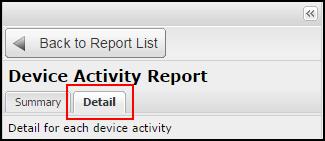
Summary/Detail: Select Detail so that the report results contain the complete device communication details about each device included in the report.
-
Scope: Select the Enterprise Group (default option) so that report pulls each device in your account.
-
Time Zone: Select the time zone for the generated report data.
-
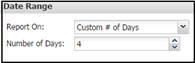
Date Range. For this example, select Report On > Custom # of days, and then select Number of Days - 4. This sample report will only include devices that have not communicated with FleetOutlook within the past four days.
-
Filters and Options:
-
Group By: If you want to have the report data to identify the group to which the device is assigned then select the group level. If you do not select a group level, it will not affect the report results. All devices will belong to the Enterprise Group.
-
Devices to Include: Select No Communication (No events at all).
-
Report Actions: Click the Generate button.
Sample Results
If your report contains devices, you have devices that have not communicated with FleetOutlook and may require attention. There are several conditions that can produce a device out of FleetOutlook communication:
-
The device is out of cellular coverage and cannot communicate.
-
The device has no power and cannot transmit and communicate. This includes devices with dead batteries or devices that have been removed from the vehicle power source (e.g., tossed in the glove box).
-
The device is damaged or inoperable (the device functionality is broken).
Additionally, the report results will contain the “Latest Event Type” column. The Latest Event Type describes the last event that FleetOutlook received from the device.
|
Latest Event Type |
Definition |
|
Alive |
24 hour check-in. All devices are designed to report in FleetOutlook once every 24 hours. |
|
Communication Down |
Device has lost connection with its cellular network. This event will only reach FleetOutlook after the device has reconnected to the cellular network. |
|
Communication Up |
Device has reconnected with the cellular network. |
|
Ignition Off |
Vehicle’s ignition was turned off. |
|
Ignition On |
Vehicle’s ignition was turned on. |
|
LMU Power UP |
Device has connected to vehicle power. |
|
Periodic Report |
Any moving event. |
|
Restored Lost GPS Connection |
Device has reconnected with the GPS satellite network. |
|
Vehicle Started |
Vehicle has started to move. |
|
Vehicle Stopped |
Vehicle has stopped. |